Maintaining a WordPress website requires consistent attention to detail and systematic care. Whether you manage a personal blog or a business website, implementing a structured monthly WordPress maintenance routine ensures your site remains secure, fast, and fully functional for your visitors.
Many website owners struggle with remembering which maintenance tasks to perform and when to perform them. This comprehensive checklist breaks down essential monthly WordPress maintenance into manageable weekly tasks, making it easier to maintain your site without feeling overwhelmed.
While you can handle these tasks yourself, many businesses partner with a professional WordPress maintenance service to ensure consistent care and free up valuable time for growing their business.
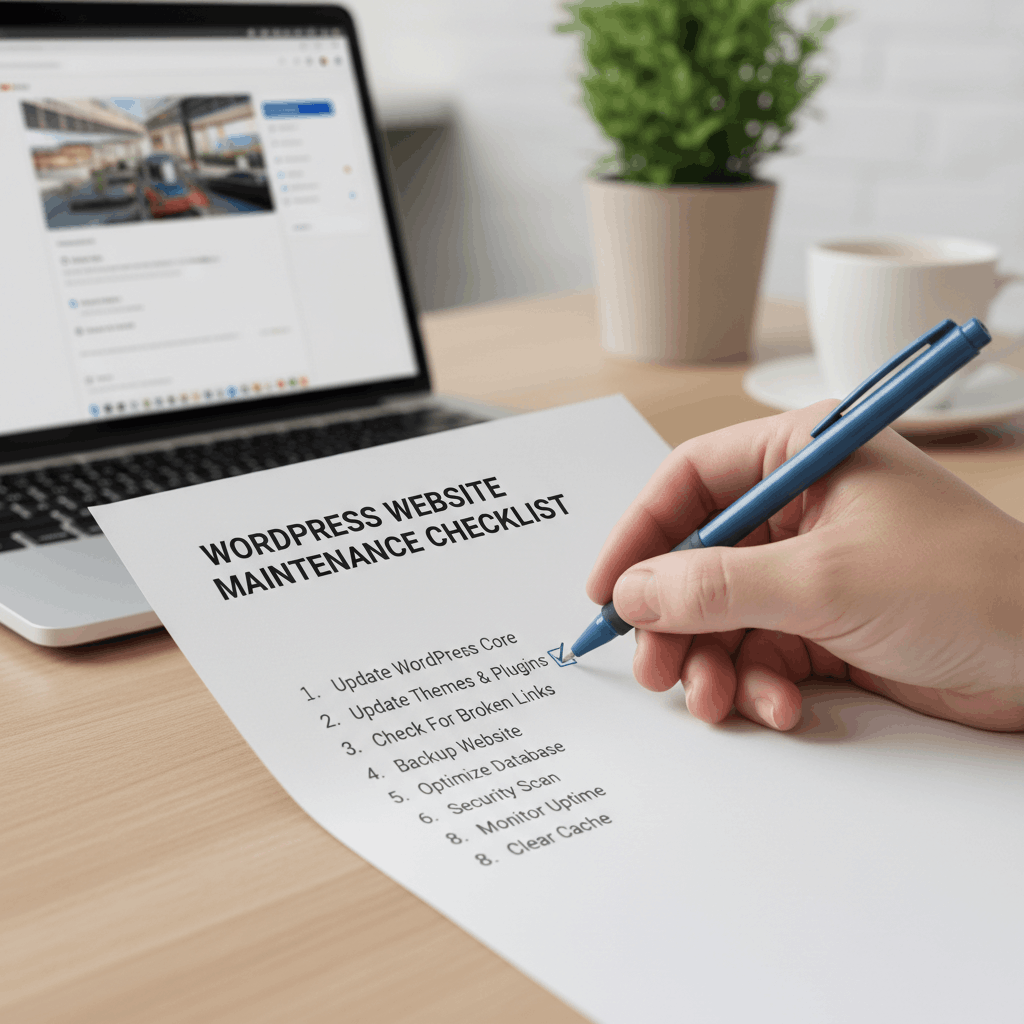
Monthly wordpress maintenance: a complete checklist Table of Contents
- Why Monthly WordPress Maintenance Matters
- Week 1: Security and Backup Tasks
- Week 2: Performance Optimization Tasks
- Week 3: Content and SEO Maintenance
- Week 4: Technical Health Checks
- Creating Your Monthly Maintenance Schedule
- Frequently Asked Questions
- Streamline Your WordPress Maintenance Routine
Why Monthly WordPress Maintenance Matters
Regular monthly WordPress maintenance isn’t just about keeping your site running—it’s about protecting your online investment and ensuring optimal performance. Neglecting routine maintenance can lead to security vulnerabilities, slow loading times, and ultimately, lost revenue and visitors.
A comprehensive WordPress website maintenance service addresses critical aspects that impact your site’s success. Security threats evolve constantly, with hackers developing new methods to exploit outdated software and plugins.
Beyond security, monthly maintenance improves user experience through faster load times, functional features, and reliable performance. Search engines reward well-maintained sites with better rankings, making maintenance a crucial component of your SEO strategy.
Week 1: Security and Backup Tasks
The first week of your monthly maintenance cycle should focus on the most critical elements: security and backups. These tasks protect your website from threats and ensure you can recover quickly if something goes wrong.
Starting your monthly routine with security tasks establishes a foundation of protection. This approach prioritizes the most time-sensitive maintenance activities that directly impact your site’s safety.
Update All WordPress Components
Begin by updating your WordPress core, themes, and plugins to their latest versions. Software updates patch security vulnerabilities and fix bugs that could compromise your site’s integrity.
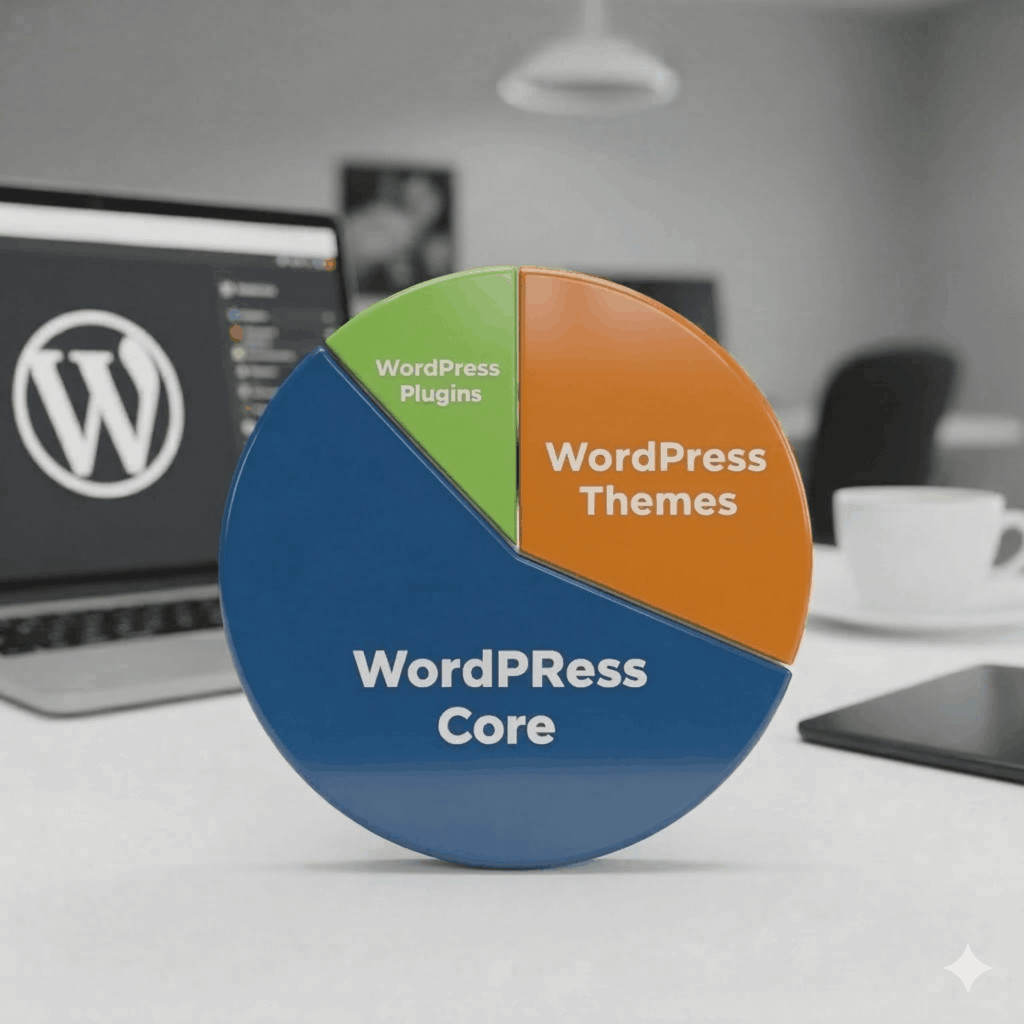
Before updating, always review release notes to understand what changes each update brings. Test updates on a staging environment first if possible, especially for major version changes.
- Update WordPress core to the latest version
- Update all active plugins and themes
- Remove any inactive or unused plugins
- Delete unused themes (keep at least one default theme)
- Review plugin compatibility after updates
For guidance on setting up your WordPress installation correctly, check out this essential WordPress setup checklist.
Verify Backup Integrity
Creating backups is only half the battle—you must verify they’re working correctly. Test your backup restoration process at least once per month to ensure you can recover your site when needed.
A WordPress site maintenance service typically includes automated backup verification, but if you’re managing backups yourself, this step is non-negotiable. Download a recent backup and verify all files and databases are complete and accessible.
- Confirm automatic backups are running on schedule
- Download and inspect backup files
- Test restoration on a staging environment
- Verify backup storage hasn’t reached capacity
- Check offsite backup synchronization
Scan for Security Vulnerabilities
Run comprehensive security scans to identify potential threats, malware, or suspicious activity. Security plugins can detect compromised files, suspicious code injections, and unauthorized access attempts.
Review your security scan results carefully and address any flagged issues immediately. Change passwords if suspicious login attempts are detected, and consider implementing two-factor authentication.
- Run full malware and vulnerability scans
- Review security logs for suspicious activity
- Update administrator passwords
- Check user accounts for unauthorized additions
- Verify SSL certificate is active and valid
Learn more about strengthening your WordPress security with proven techniques.
Week 2: Performance Optimization Tasks
Week two focuses on keeping your WordPress site running at peak performance. Speed and optimization directly impact user experience, conversion rates, and search engine rankings.
Performance degradation happens gradually as databases accumulate overhead, caches become outdated, and unnecessary files pile up. Regular optimization maintains the speed your visitors expect.
Optimize Your WordPress Database
Your WordPress database stores everything from posts and pages to settings and user data. Over time, it accumulates overhead from revisions, spam comments, and transient options that slow down queries.
Database optimization removes unnecessary data and reorganizes tables for efficient access. Most WordPress maintenance service providers include this in their monthly routines.
- Delete spam and trashed comments
- Remove post revisions (keep recent ones only)
- Clean up transient options
- Optimize database tables
- Remove orphaned post metadata
Clear All Caching Systems
Caching dramatically improves site speed by serving stored versions of pages instead of generating them from scratch. However, outdated caches can display incorrect content or cause functionality issues.
Clear your caching systems monthly to ensure fresh content displays correctly. This includes server-side caches, plugin caches, CDN caches, and browser caches.
- Purge WordPress plugin caches
- Clear server-side caching (if applicable)
- Refresh CDN caches
- Clear object and database caches
- Test page loading after cache clearing
Review Site Speed Metrics
Monitor your site’s performance using tools like Google PageSpeed Insights, GTmetrix, or Pingdom. Track metrics month-over-month to identify performance trends and address slowdowns before they impact users.
Document your speed test results to establish baseline performance. This data helps you understand the impact of changes and optimizations over time.
- Run speed tests on key pages
- Review Core Web Vitals scores
- Identify performance bottlenecks
- Optimize large images and media files
- Review and minimize HTTP requests

Week 3: Content and SEO Maintenance
The third week focuses on content quality and search engine optimization. Fresh, accurate content and proper SEO maintenance help your site attract and retain visitors.
Content maintenance ensures your website provides value to visitors while maintaining search engine visibility. This systematic approach identifies opportunities for improvement and addresses issues that could harm your rankings.
Check for Broken Links
Broken links frustrate users and signal poor maintenance to search engines. Use link checker plugins or online tools to scan your entire site for broken internal and external links.
Fix or remove broken links promptly to maintain user experience and SEO value. Replace outdated external links with current alternatives when possible.
- Scan all pages and posts for broken links
- Fix or remove broken internal links
- Update or replace broken external links
- Check image links and media files
- Verify menu and footer links function correctly
Review and Update Content
Regularly review your content for accuracy, relevance, and freshness. Update statistics, refresh outdated information, and improve content that underperforms in search results.
Content updates signal to search engines that your site remains active and relevant. This practice can improve rankings and attract more organic traffic.
- Update outdated statistics and information
- Refresh old blog posts with new insights
- Add internal links to newer content
- Improve underperforming pages
- Check that all images display correctly

Monitor SEO Performance
Track your search engine rankings, organic traffic, and keyword performance. Identify trends, opportunities, and issues that require attention to maintain or improve your search visibility.
Use Google Search Console to monitor indexing status, identify crawl errors, and review search performance data. Address any issues that could impact your rankings.
- Review Google Search Console for errors
- Check indexation status of new content
- Monitor keyword rankings
- Analyze organic traffic trends
- Review and update meta descriptions
Week 4: Technical Health Checks
The final week of your monthly WordPress maintenance focuses on technical functionality and user experience. These checks ensure all site features work correctly and provide a seamless experience across devices.
Technical issues often go unnoticed until users report problems. Proactive testing identifies and resolves issues before they impact your audience.
Test Form Functionality
Contact forms, newsletter signups, and other forms are critical conversion points. Test each form monthly to ensure submissions process correctly and reach intended recipients.
Form failures can cost you leads, customers, and revenue. Regular testing prevents these silent failures from going undetected.
- Submit test entries through all forms
- Verify email notifications arrive
- Check form validation works correctly
- Test spam protection functionality
- Confirm form data saves to database if applicable
Review Analytics and Uptime
Analyze your website analytics to understand visitor behavior, traffic sources, and site performance. Review uptime monitoring reports to identify any availability issues that occurred during the month.
Regular analytics review helps you make data-driven decisions about content, design, and functionality improvements. Uptime monitoring ensures you’re aware of and can quickly address any downtime.
- Review traffic and engagement metrics
- Analyze top-performing content
- Check conversion rate trends
- Review uptime reports and downtime incidents
- Monitor server response times
Check Mobile Responsiveness
With mobile traffic dominating web usage, ensuring your site works flawlessly on smartphones and tablets is essential. Test key pages and features on various devices and screen sizes.
Mobile responsiveness affects both user experience and search rankings, as Google prioritizes mobile-friendly sites. Regular testing catches issues that may arise from updates or content changes.
- Test site on multiple mobile devices
- Verify touch targets are appropriately sized
- Check mobile menu functionality
- Ensure images scale correctly
- Test forms on mobile devices
For additional guidance on essential plugins that support site maintenance, review these essential WordPress plugins for business sites.

Creating Your Monthly Maintenance Schedule
Consistency is key to effective monthly WordPress maintenance. Create a schedule that works for your availability and stick to it religiously.
Choose specific days each month for your maintenance tasks. For example, conduct security tasks on the first Monday, performance tasks on the second Monday, and so on. Calendar reminders ensure you never miss scheduled maintenance.
Document your maintenance activities in a spreadsheet or project management tool. Record completion dates, issues discovered, and actions taken. This documentation helps track patterns, justify maintenance investments, and troubleshoot future issues.
If managing this schedule feels overwhelming, consider the benefits of working with a professional maintenance plan that handles these tasks systematically.
Many businesses find that partnering with affordable WordPress support packages provides better results than trying to manage everything in-house.
Frequently Asked Questions
How long does monthly WordPress maintenance take?
A complete monthly WordPress maintenance routine typically takes 2-4 hours, depending on your site’s complexity and size. Breaking tasks into weekly sessions of 30-60 minutes makes the process more manageable. Sites with extensive content, multiple plugins, or e-commerce functionality may require additional time.
Can I automate WordPress maintenance tasks?
Yes, many maintenance tasks can be partially automated using plugins and tools. Automatic updates, scheduled backups, and security scans can run without manual intervention. However, human oversight remains essential for reviewing results, testing functionality, and making informed decisions about updates and optimizations.
What happens if I skip monthly maintenance?
Skipping monthly maintenance increases security risks, degrades performance, and can lead to functionality issues. Outdated software becomes vulnerable to exploits, databases slow down with accumulated overhead, and small issues compound into major problems. Regular maintenance prevents costly emergency repairs and potential site compromises.
Should I hire a WordPress maintenance service?
Hiring a WordPress maintenance service makes sense if you lack technical expertise, don’t have time for regular maintenance, or want professional oversight. Professional services bring experience, tools, and systematic processes that ensure thorough maintenance. For many businesses, outsourcing maintenance is more cost-effective than managing it internally.
How much does monthly WordPress maintenance cost?
DIY monthly WordPress maintenance costs primarily involve tool subscriptions ($50-200/month for premium plugins and services). Professional WordPress website maintenance service packages typically range from $50-500+ per month, depending on service level, site complexity, and included features. The investment protects against costly downtime, security breaches, and lost business.
What’s the difference between monthly and weekly maintenance?
Weekly maintenance focuses on immediate priorities like security updates, backup verification, and critical monitoring. Monthly maintenance includes deeper optimization, comprehensive testing, and strategic reviews that don’t require weekly attention. The most robust maintenance strategies combine both weekly critical tasks and monthly comprehensive reviews.
Streamline Your WordPress Maintenance Routine
Implementing a systematic monthly WordPress maintenance checklist transforms website care from a reactive scramble to a proactive strategy. This structured approach protects your investment, maintains performance, and ensures your site consistently delivers value to visitors.
The key to successful maintenance is consistency. Whether you handle tasks yourself or partner with professionals, establishing and following a regular schedule prevents small issues from becoming major problems.
At WP.Support, we understand that managing monthly WordPress maintenance alongside running your business can be challenging. Our comprehensive WordPress site maintenance service handles every item on this checklist systematically, giving you peace of mind and freeing your time for strategic business activities.
Ready to ensure your WordPress site receives expert monthly care? Explore our WordPress care plans designed to keep your site secure, fast, and fully optimized. Let our team of WordPress specialists handle the technical details while you focus on growing your business.