WordPress Maintenance Mode Table of Contents
Every WordPress website needs occasional updates, upgrades, and improvements. During these critical periods, WordPress maintenance mode serves as your first line of defense against delivering a broken or incomplete user experience. Whether you’re updating plugins, redesigning your site, or performing essential maintenance tasks, understanding how to properly implement maintenance mode is crucial for protecting your brand reputation and user satisfaction.
In this comprehensive guide, we’ll explore everything you need to know about enabling, customizing, and managing maintenance mode for WordPress sites. You’ll discover the best plugins, manual implementation methods, and professional strategies to keep your visitors informed while you work behind the scenes.
What is WordPress Maintenance Mode?
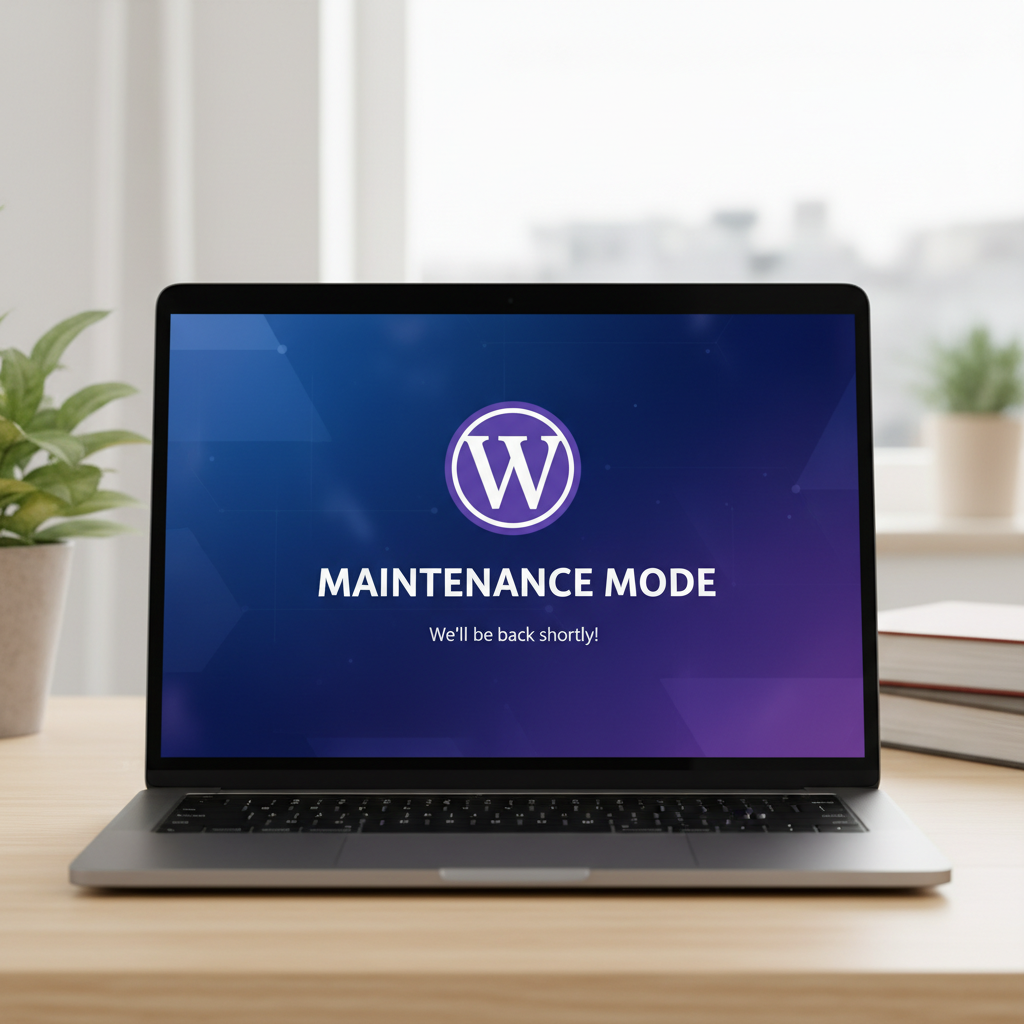
Maintenance mode on WordPress is a temporary state that displays a customized landing page to visitors while you perform updates, fixes, or improvements to your website. Instead of seeing a broken site or experiencing errors, users receive a polished message explaining that maintenance is in progress and when they can expect the site to return.
Think of it as putting a “temporarily closed for improvements” sign on your digital storefront. It maintains professionalism while protecting your site’s functionality during critical work periods.
WordPress actually includes a basic built-in maintenance mode that activates automatically during core updates. However, this default version is minimal and doesn’t provide the customization options most site owners need for planned maintenance windows.
Why You Need Maintenance Mode for WordPress
Implementing proper maintenance mode isn’t just a nice-to-have feature—it’s essential for maintaining your website’s credibility and user experience. Let’s explore the key reasons why every WordPress site owner should master this functionality.
Protecting Your Professional Image
Nothing damages trust faster than visitors encountering broken pages, missing images, or functionality errors. When users see these issues, they question your professionalism and reliability. A well-designed maintenance page demonstrates that you’re actively managing your site and caring for the user experience.
Your maintenance page becomes an opportunity to reinforce your brand values and communicate your commitment to quality. It’s far better than leaving visitors to discover problems on their own.
Preventing Visitor Confusion
Without maintenance mode enabled, visitors attempting to access your site during updates may experience unpredictable behavior. Forms might not submit, checkout processes could fail, and navigation may break entirely. This confusion often results in lost customers, abandoned carts, and frustrated users who may never return.
A clear maintenance message sets proper expectations and encourages visitors to return once work is complete. You can even collect email addresses to notify them when you’re back online.
Maintaining SEO Rankings
Search engines continuously crawl websites to update their indexes. If Google encounters significant errors or broken functionality during maintenance, it could negatively impact your rankings. Proper implementation of maintenance mode WordPress strategies includes serving the correct HTTP status codes (503 Service Unavailable) that tell search engines the downtime is temporary.
This approach protects your hard-earned SEO authority while you make necessary improvements. For more insights on protecting your site’s performance, check out our guide on why you need a WordPress maintenance plan.

How WordPress Automatically Activates Maintenance Mode
WordPress includes a built-in automatic maintenance mode that activates when you update the core software. When you click the update button, WordPress creates a file called .maintenance in your site’s root directory. This file triggers a simple maintenance message that displays to all visitors.
The automatic mode typically displays for just a few seconds during quick updates. However, for larger updates or if something goes wrong, this file may remain active longer than intended.
The default message is basic and unbranded: “Briefly unavailable for scheduled maintenance. Check back in a minute.” While functional, this generic message doesn’t provide the professional appearance or customization options most site owners prefer.
Understanding this automatic system is important because it’s the foundation for more advanced maintenance mode implementations. It also explains why sometimes your site gets “stuck” in maintenance mode—the .maintenance file didn’t delete properly after an update completed.
Methods to Enable Maintenance Mode on WordPress
There are several effective approaches to implementing maintenance mode for WordPress, each with distinct advantages depending on your technical comfort level and specific needs. Let’s explore the three primary methods in detail.
Method 1: Using Maintenance Mode Plugins (Beginner all the way to Advanced)
Plugins offer the most user-friendly approach to enabling maintenance mode, especially for users without coding experience. These tools provide intuitive interfaces, customization options, and often include beautiful pre-designed templates.
To enable maintenance mode using a plugin:
- Navigate to your WordPress dashboard and go to Plugins → Add New
- Search for “maintenance mode” or choose from our recommended plugins below
- Install and activate your chosen plugin
- Configure the settings, customize your maintenance page design
- Toggle the maintenance mode to “active” when ready
Most quality maintenance mode plugins allow you to preview your maintenance page before activating it. They also typically include bypass options so administrators can access the site normally while visitors see the maintenance message.
The plugin method integrates seamlessly with your existing WordPress workflow and requires no file management or coding knowledge. For more essential plugins that enhance your WordPress site, explore our article on essential WordPress plugins for business sites.
Method 2: Manual Code Implementation (Developers and Advanced Users)
For developers or those who prefer direct control, manually creating a maintenance mode implementation provides maximum flexibility. This method involves creating a custom .maintenance file in your WordPress root directory.
Here’s a basic example of what your .maintenance file might contain:
<?php
$upgrading = time();
?>
This simple code activates maintenance mode immediately. For a more customized approach, you can create a custom maintenance page template and reference it through your theme’s functions.php file or a custom plugin.
The advantage of manual implementation is complete control over functionality, design, and performance. However, it requires technical knowledge and careful testing to ensure proper implementation.
Method 3: Using Your Theme Functions (Developers and Advanced Users)
Another approach involves adding code to your theme’s functions.php file (preferably in a child theme to preserve changes during updates). This method creates a maintenance mode that integrates directly with your theme.
This approach works well when you want maintenance mode functionality without installing additional plugins. However, it’s important to implement proper checks to ensure administrators can still access the site for testing purposes.
Always backup your site before modifying core files. If you’re uncomfortable with code-level changes, professional WordPress support services can implement these solutions safely. Learn more about what WordPress support services can do for your site.
Best WordPress Maintenance Mode Plugins
Choosing the right plugin can dramatically simplify your maintenance mode implementation. Here are the top-rated options that offer excellent functionality, customization, and reliability for maintenance mode WordPress needs.
1. Lightstart
WP Maintenance Mode is one of the most popular free options with over 500,000 active installations. It offers a simple interface with powerful customization capabilities including countdown timers, custom backgrounds, social media integration, and contact forms.
The plugin allows you to add custom CSS and HTML, giving you complete design control. It also includes role-based access, meaning you can allow certain user levels to bypass maintenance mode for testing purposes.
2. SeedProd
SeedProd stands out as a premium solution offering drag-and-drop page building specifically designed for maintenance and coming soon pages. The plugin includes professionally designed templates, email collection integration, and mobile-responsive designs.
While SeedProd offers a free version, its paid tiers unlock advanced features like integration with email marketing services, premium templates, and advanced customization options. It’s ideal for users who want a polished, professional maintenance page without coding.
3. Minimal Coming Soon & Maintenance Mode
True to its name, this plugin focuses on simplicity and performance. It’s lightweight, loads quickly, and won’t bog down your site with unnecessary features. The plugin includes a clean interface with essential customization options including logo uploads, custom text, and background images.
This option works particularly well for users who want basic functionality without complexity. It’s perfect for quick maintenance windows or simple site updates.
4. Under Construction
Under Construction plugin offers both free and premium versions with an emphasis on conversion optimization. It includes built-in analytics to track visitors who arrive during maintenance, email collection capabilities, and social media integration.
The plugin’s standout feature is its selection of professional templates that can be customized to match your brand. The premium version adds features like MailChimp integration, custom CSS, and premium support.
Customizing Your Maintenance Mode Page
A generic maintenance message misses a valuable opportunity to engage visitors and maintain your brand presence. Proper customization transforms a simple notification into a branded experience that builds anticipation and maintains customer relationships.
WordPress Maintenance Mode: Essential Elements to Include
Your maintenance page should communicate clearly while maintaining professionalism. Include these critical elements:
- Clear headline: Immediately communicate that the site is temporarily unavailable
- Expected return time: Give visitors a specific timeframe when possible
- Brief explanation: A sentence or two about why maintenance is occurring
- Your logo and branding: Maintain brand consistency and recognition
- Contact information: Provide an alternative way to reach you if needed
- Social media links: Keep visitors connected through other channels
- Email signup form: Collect addresses to notify users when you’re back online
Consider adding a progress bar or countdown timer if you know the exact maintenance duration. This creates anticipation and gives visitors a concrete expectation.
Design Best Practices

The visual design of your maintenance page should reflect your brand while remaining clear and functional. Use your brand colors, fonts, and visual style to create consistency with your normal site experience.
Keep the design clean and uncluttered. Visitors should immediately understand the message without searching through excessive information. Use whitespace effectively to draw attention to key information.
Ensure your maintenance page is fully mobile-responsive. Many visitors will encounter your maintenance message on smartphones or tablets. Test the page across multiple devices before activating maintenance mode.
How to Disable Maintenance Mode WordPress
Deactivating maintenance mode should be straightforward, but the process varies depending on your implementation method. If you used a plugin, simply navigate to the plugin settings and toggle maintenance mode to “inactive” or “off.”
For manual implementations, you’ll need to remove or delete the .maintenance file from your WordPress root directory. Access your site via FTP or your hosting control panel’s file manager, locate the file, and delete it.
Always verify that maintenance mode has been fully disabled by checking your site in an incognito browser window or after clearing your cache. Sometimes cached versions of the maintenance page persist even after deactivation.
When Maintenance Mode Gets Stuck
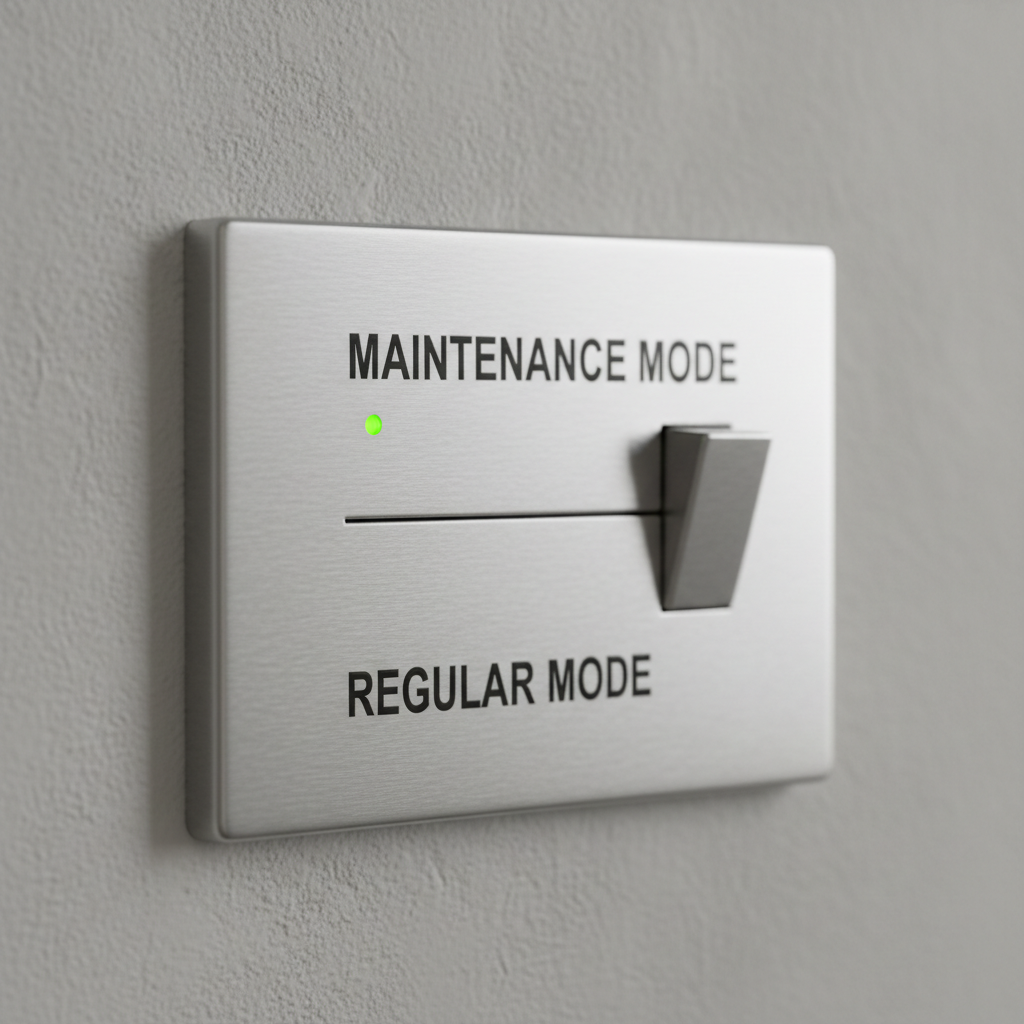
Occasionally, WordPress sites get stuck in maintenance mode after an update fails or a plugin malfunctions. This happens when the .maintenance file doesn’t delete automatically as intended.
To fix a stuck maintenance mode:
- Connect to your site via FTP or your hosting file manager
- Navigate to your WordPress root directory (usually public_html or www)
- Look for a file named
.maintenance(note the period at the beginning) - Delete this file
- Refresh your browser to confirm the site is accessible
If you don’t see the .maintenance file, ensure your FTP client or file manager is set to show hidden files. Files beginning with a period are typically hidden by default.
For persistent issues or if you’re uncomfortable accessing site files directly, professional support can quickly resolve stuck maintenance mode problems. Consider our affordable WordPress support packages for expert assistance.
Maintenance Mode vs. Coming Soon Page
While these terms are sometimes used interchangeably, maintenance mode and coming soon pages serve distinct purposes with different technical implementations. Understanding the difference helps you choose the right approach for your situation.
Maintenance mode is a temporary state for existing websites undergoing updates or fixes. It should return a 503 HTTP status code (Service Unavailable) with a Retry-After header, signaling to search engines that the downtime is temporary and they should check back later.
Coming soon pages are used for websites that haven’t launched yet. They typically return a 200 HTTP status code since there’s no “unavailable” service—the site simply hasn’t gone live. These pages often focus on building anticipation and collecting email addresses for launch notifications.
Using the wrong type can impact your SEO. Never use coming soon mode for an established site undergoing maintenance, as this can confuse search engines about your site’s status.
Best Practices for Using Maintenance Mode on WordPress
Implementing maintenance mode on WordPress effectively requires following established best practices that protect both user experience and search engine rankings. These guidelines ensure your maintenance periods cause minimal disruption.
Schedule maintenance during low-traffic periods: Use your analytics to identify when your site receives the least traffic, typically late nights or early mornings in your primary audience’s timezone. This minimizes the number of visitors affected by downtime.
Communicate in advance: If possible, notify your users before activating maintenance mode. Add banners to your site, send email notifications, or post on social media about planned maintenance windows.
Keep maintenance windows short: Plan your work carefully to minimize downtime. Test changes on a staging site first so you can implement them quickly on the live site. The goal should be completing maintenance in minutes or hours, not days.
Use proper HTTP status codes: Always ensure your maintenance mode returns a 503 status code. This tells search engines the downtime is temporary and prevents negative SEO impacts.
Test thoroughly before deactivating: Don’t rush to disable maintenance mode. Verify that all updates are working correctly, test critical functionality, and ensure the site is fully operational before exposing it to visitors.
Monitor and be responsive: Stay available during maintenance periods to address unexpected issues. Have a plan for rolling back changes if something goes wrong.
For comprehensive guidance on maintaining your WordPress site effectively, review our essential WordPress setup checklist.
Common Maintenance Mode Issues and Solutions
Even with careful planning, maintenance mode implementations can encounter problems. Understanding common issues and their solutions helps you respond quickly when challenges arise.
White Screen of Death
Sometimes activating maintenance mode triggers WordPress’s infamous white screen of death instead of displaying your maintenance page. This usually indicates a PHP error in your maintenance code or a conflict with another plugin.
To resolve this, access your site via FTP and temporarily rename your maintenance mode plugin folder or delete the .maintenance file. This should restore site access so you can troubleshoot the underlying issue.
Locked Out of Admin Area
Occasionally, maintenance mode prevents even administrators from accessing the WordPress dashboard. This happens when maintenance mode plugins don’t properly implement user role exceptions.
Most plugins include a bypass option using a URL parameter like ?bypass=true or allowing access from specific IP addresses. Check your plugin documentation for the specific bypass method. Alternatively, temporarily disable the plugin via FTP to regain access.
Search Engine Penalties
Extended maintenance periods or incorrect HTTP status codes can negatively impact search rankings. If your site remains in maintenance mode for days or weeks, search engines may begin deindexing your pages.
Avoid this by limiting maintenance mode to the shortest possible duration and always using proper 503 status codes with Retry-After headers. For major redesigns requiring extended development time, use a staging site instead of keeping your live site in maintenance mode.
Security concerns are also important during maintenance. Learn more about strengthening WordPress site security to protect your site during and after maintenance periods.
Professional WordPress Maintenance Services
While WordPress maintenance mode tools help you communicate with visitors during updates, they’re just one aspect of comprehensive WordPress maintenance. Professional maintenance services handle the complete spectrum of site care, from security updates to performance optimization.
Expert WordPress support teams can implement maintenance mode seamlessly as part of managed update processes. They monitor your site during maintenance windows, quickly address issues, and ensure minimal disruption to your business operations.
Professional services also provide staging environments where major changes can be tested before deployment. This dramatically reduces the need for extended maintenance mode on your live site.
At WP Support, we offer high-quality WordPress maintenance and reliable website support that includes proactive monitoring, security updates, performance optimization, and expert assistance when you need it most. Our care plans are designed to keep your site running smoothly while you focus on your business.
Whether you need occasional support or comprehensive ongoing maintenance, professional services provide peace of mind that your site is in capable hands. Explore our WordPress care plan pricing to find the right level of support for your needs.
Mastering WordPress Maintenance Mode
WordPress maintenance mode is an essential tool for every site owner, protecting your professional reputation while you perform necessary updates and improvements. Whether you choose a user-friendly plugin or implement a custom solution, proper maintenance mode ensures visitors receive a polished experience even during downtime.
Remember that effective maintenance mode implementation goes beyond simply activating a plugin. It requires careful planning, clear communication with your audience, proper technical configuration, and thorough testing before returning your site to normal operation.
By following the strategies and best practices outlined in this guide, you’ll confidently manage site updates without sacrificing user experience or search engine rankings. Your maintenance periods become opportunities to demonstrate professionalism rather than sources of visitor frustration.
Ready to take your WordPress maintenance to the next level? Don’t let site updates stress you out or risk damaging your online presence. Contact our expert WordPress support team today to discuss how our professional maintenance services can keep your site running smoothly, securely, and efficiently. We handle the technical details so you can focus on growing your business.
For more insights on WordPress management, explore our WordPress maintenance blog where we regularly share tips, guides, and best practices for site owners at every skill level.